You posted a story and want it inside a WordPress post, as a file you own in the Media Library. Instagram’s embed feature covers posts, reels, guides and profiles; stories are not on that list. So you need the file itself: phone first, laptop second.
Save it in the app first
Start with the route Instagram documents.
1. Before you share, tap Save (iPhone) or Download (Android) at the top of the screen.
2. Already shared? Open your story and tap Options in the bottom right.
3. Tap Save Photo/Video to keep that one frame.
4. On iPhone, tap Save Story for the whole story as a single video.
That is it when the phone that shot it is in your hand. One rule for the blog: my own stories, or ones whose owner has let me reuse them. Anyone else’s stay put.
A day later: the Archive
After 24 hours a story leaves your Feed, your profile and Direct. By default it does not vanish; Instagram saves it to your Stories Archive.
1. Open your profile and tap Menu.
2. Tap Archive and pick the story.
3. Tap Options, then Save photo or Save video.
Check the toggle on a computer: More in the bottom left, Settings, Archiving and downloading under Your app and media, Save story to archive.
| Where | Setting or button | What it does for the blog post |
| Story editor, before sharing | Save (iPhone) or Download (Android), top of the screen | Keeps the finished story on the phone |
| Your live story, Options (bottom right) | Save Photo/Video; on iPhone also Save Story | One frame, or the whole story as a single video |
| Settings, Archiving and downloading | Save story to archive | On by default; turned off, new stories are deleted after 24 hours |
| Profile, Menu, Archive, Options | Save photo or Save video | Gets an older story back as a file |
| WordPress Video block, Settings tab | Play inline, Muted, Preload, Poster image | Vertical clip plays in place, lighter page load, a clean first frame |
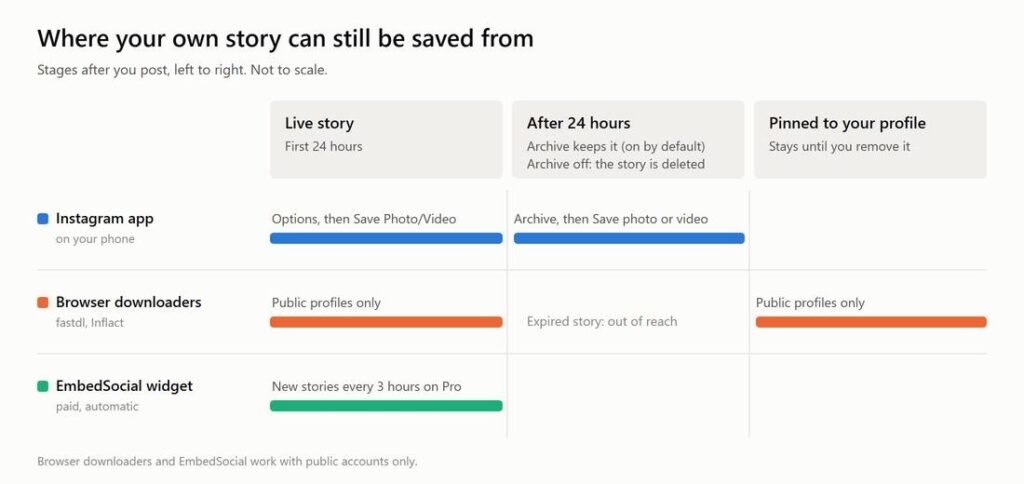
Three stages of a story, left to right, and the routes that reach each one. The app covers the live story and the Archive; browser downloaders cover the live story and the pinned one, on public profiles only.
The rest is for when the phone cannot help.
The original is gone and you are at the laptop
Phone swapped, clip deleted, story shot on a device you no longer have. Instagram’s camera-roll help article comes in Android, Instagram Lite, iPhone and iPad versions, with no Computer version.
If the story is still on your public profile, live or pinned in the circles under your bio, a browser tool is the route left. I use fastdl’s story downloader, its Story Saver page; it takes the story link or just your username.
1. Copy the story link, or note your username.
2. Paste it into the box on the Story Saver page.
3. Click Download, then switch from POSTS to STORIES.
To test it I typed a public username, nasaearth. The profile opened on POSTS, with STORIES second of four tabs, and each post card carried its own Download button. In five logged runs the links came with no account step in front of them. The post video I pulled from that results page was a portrait MP4 at 720 x 1280 with stereo AAC sound. The page says the story must be “viewable to the public”, so a private account is out.
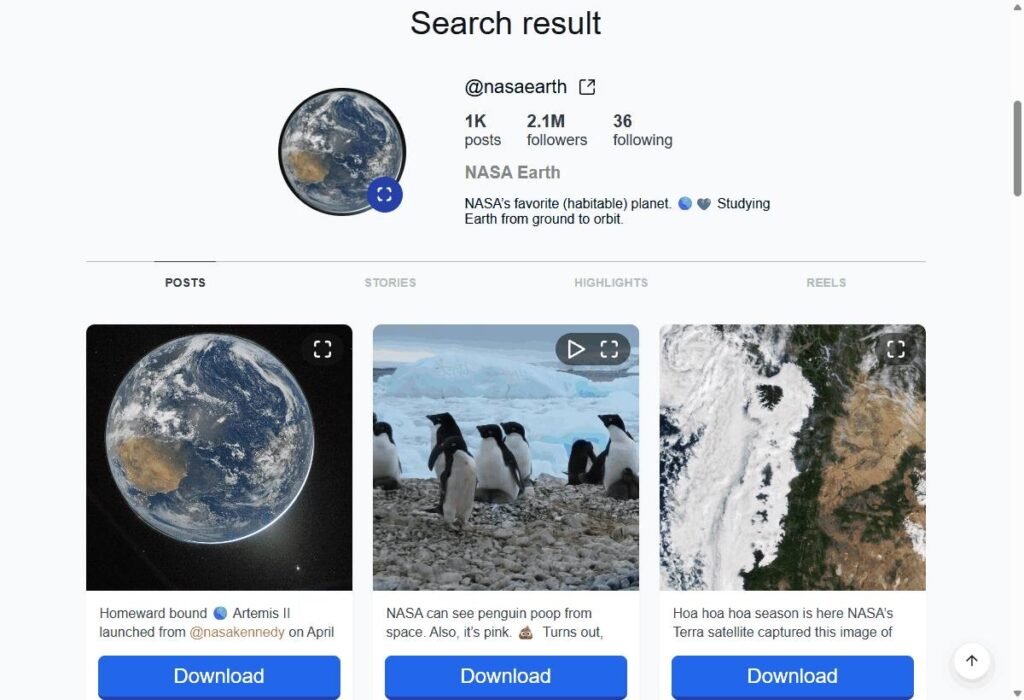
A username alone opened the profile. The tab row sits under the bio, POSTS is selected, and each post card carries a Download button. No login form on the page.
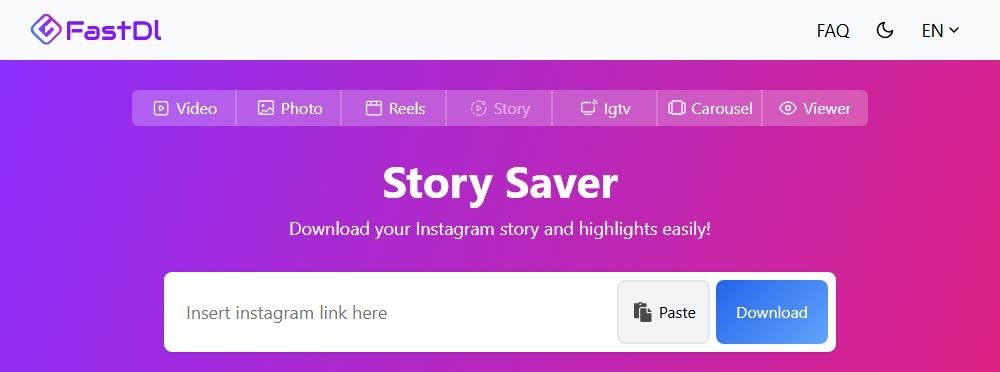
The page before any input: one box marked “Insert instagram link here”, Paste, Download. The top bar has no sign-in button.
Two other routes, and where each one wins
EmbedSocial is the better choice if you want every story on the site automatically. Its widget connects through the official Instagram API, adds new stories on its own every 3 hours on Pro, and drops into WordPress as a plugin shortcode. fastdl does nothing of the kind. The trade: Pro is €29 a month (€24 a month billed yearly), and the 7-day trial asks for a card. You need an EmbedSocial account and a Facebook connection, and if you cancel, the widget comes off your site.
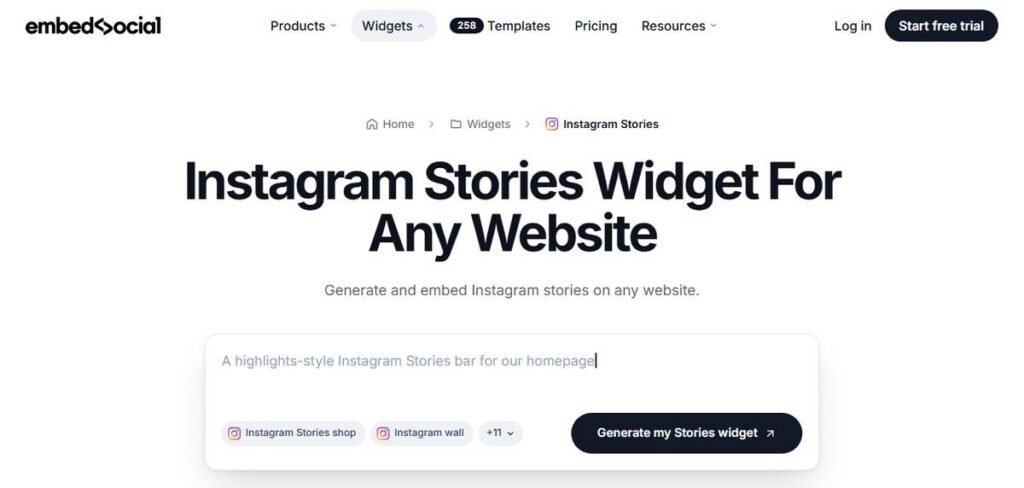
The widget route. The page sells a stories bar for your own site, and the trial button sits top right.
Inflact’s pricing table ticks “Original HD quality” on its free plan, a claim I did not test and cannot set against fastdl’s output. It is candid that a story is out of reach once it expires. The free plan allows 2 story downloads a day, so a story of several frames will not fit into one sitting. Inflact lists Premium at €7.8 a month with unlimited downloads.
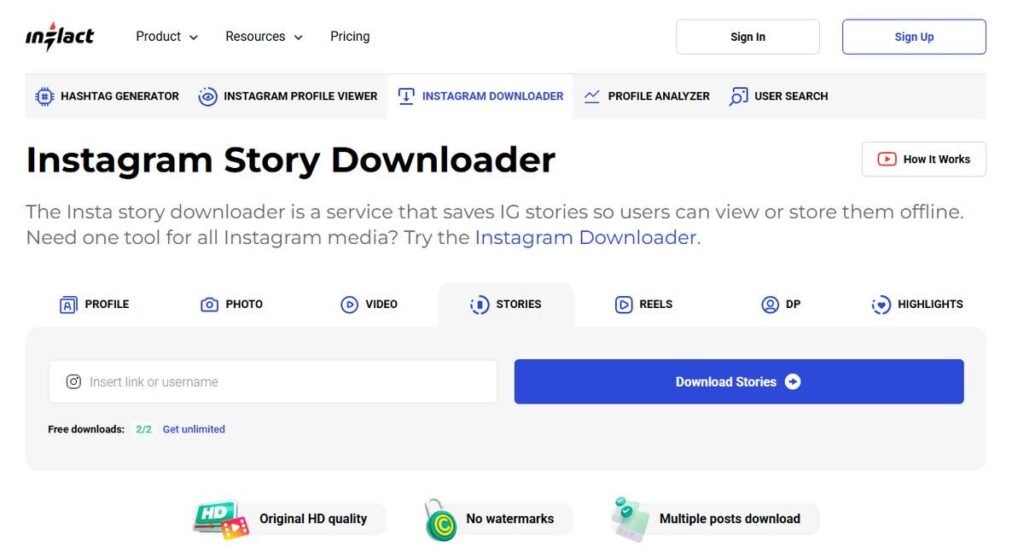
Under Inflact’s input box the counter reads 2/2, next to a Get unlimited link. Its own HD badge sits below.
Into WordPress
Add a Video block and choose Upload or Media Library. Its Settings tab lists seven settings; I touch four. Play inline, so the clip plays in place. Muted, if you also turn on Autoplay. Preload on Metadata or None, since the docs say Auto “makes the biggest impact on your page or post’s load speed” and None “is the fastest setting”. The post video from my test was 8,294,411 bytes for 46.2 seconds; you do not want every visitor fetching that. And a Poster image, which “will be displayed before a video is set to play”.
When the saved file looks or sounds wrong
Saved from the Archive and the music is gone? The Archive can permanently mute or freeze photo stories that used a music or gif sticker. Save those from the live story inside the 24 hours, or keep the original before sharing. No Archive in your menu? The Help Center says “Stories Archive and Highlights aren’t available for all accounts.” Empty STORIES tab in fastdl? The story is past its 24 hours and not pinned to your profile, or the account is private. No public downloader gets around either.
Click here for more.