It is time to learn everything about the WordPress plugin active installations growth. Getting your WordPress plugin published is exciting until you notice the pattern: downloads spike, then active installations stall or even decline. This is normal. WordPress users often install plugins quickly, test them briefly, and uninstall them without hesitation if the plugin doesn’t provide immediate value, feels confusing, or introduces risk.
Active installations are the metric that matters because they represent real adoption. They signal that users not only tried your plugin but also trusted it enough to keep it running on a live website. Active installs also create compounding benefits: more directory trust, more organic installs, more reviews, and ultimately more revenue opportunities, especially if you’re converting free to paid WordPress users with a freemium model.
In this guide, you’ll learn the same practical strategies that successful plugin businesses use to promote WordPress plugin and grow installs sustainably: improving your WordPress.org listing, reducing early churn with onboarding, increasing retention with documentation and support, and creating upgrade flows that feel helpful, not pushy.
What “Active Installations” Really Means and Why They Matter
Downloads measure curiosity. Active installations measure retention and trust.
When users browse the WordPress plugin directory, they look for signs of safety and credibility. Those signals often include:
- Active installation count
- Update frequency
- Compatibility (“tested up to”)
- Review quality and recency
A plugin can gain installs through marketing, but only product experience keeps it active. That’s why the fastest path to more active installations isn’t “more promotion,” it’s reducing friction and delivering value earlier. Also, active installs matter for monetization: you can’t convert free to paid WordPress users if free users don’t stick around long enough to understand your plugin’s value.
When someone is stuck choosing between a few similar plugins, they usually end up looking at how many people are already using them. A plugin that’s active on a lot of sites just feels like a safer bet. For agencies, developers, and everyday site owners, those numbers quietly suggest, “This one probably works, and people trust it.”
Active installs also affect how comfortable users feel about updates. Seeing that many other sites are using the same version makes updates feel less risky. That confidence alone can prevent uninstalls that happen simply because a user is unsure whether a plugin is still maintained or safe to keep running.
Step 1: Make Your WordPress.org Listing Convert Better
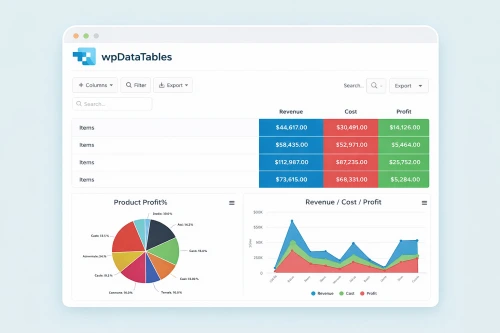
Your plugin listing is your storefront. Treat your plugin listing like a proper landing page, not something put together at the last minute. To most users, this is the last page they will read before making the decision of installing or uninstalling your plugin.
Improve Your readme.txt (Because it Controls The Listing)
The appearance of your plugin page in WordPress.org directly depends on the readme.txt file. It fills in the most important sections of the plugin page, including the description, installation steps, FAQs, and screenshots. Due to this, such seemingly minor modifications to the readme can affect the extent to which users understand what your given plugin does and whether it suits them in a significant manner.
What to do:
- Lead with a one-sentence value proposition (problem → outcome).
- Add a short “Who this plugin is for” section.
- Use bullet points for benefits (not just features).
- Include a “Quick start” section (3–5 steps).
- Build an FAQ based on real support questions.
- Keep your changelog clear and current.
Why it increases active installs: Users are far less likely to uninstall a plugin when the description matches what they actually experience, and the setup process feels easy to follow. Reviewing your readme.txt from the perspective of a first-time user helps ensure the plugin’s purpose is clear within seconds. Many successful plugins regularly update their readme.txt to improve clarity, remove outdated details, and better reflect real user needs. “Having a clear and current readme.txt also minimizes the number of support requests because setup instructions and limitations are made clear at the beginning, and so the readme prevents confusion and premature uninstallations.
Use Strong Assets (Banner, Icon, Screenshots) for WordPress Plugin Active Installations Growth
WordPress.org supports plugin assets (headers, icons, and screenshots) that appear on your listing page. These live in the plugin’s /assets folder in the WordPress.org repository.
Screenshot Best Practices:
- Show the main screen first (the “aha” moment).
- Zoom in so the UI is readable.
- Use captions that explain the benefit, not just “Settings page.”
It is equally important to have visual consistency in your assets of the plugins. When your banner, icon, and screenshots clearly belong together, the plugin feels more trustworthy at first glance. Having the same colors, fonts, and style used in such elements creates a more professional impression and makes users feel that the given plugin is actively developed and is worth retaining.
Step 2: Reduce Early Uninstalls with “Time-to-Value” Onboarding
Many users uninstall plugins within minutes if they don’t see results quickly. What you really want is to shorten time-to-value: the duration between activation and the initial evident payoff. “Time-to-value” reduction is particularly significant to non-technical users. Numerous users of WordPress install a lot of plugins without having an idea of what to expect. A fast display of the fact that a particular plugin is functioning, not only by seeing what it is doing, but by an explicit status notification or just by confirmation itself, will cause users to perceive more of an incentive to continue searching than an immediate removal.
This early success moment should be intentionally designed. Whether it’s a visible dashboard widget, a sample output, or a clear “Your setup is complete” message, this moment sets the tone for the entire user experience.
Make the Plugin Useful Immediately After Activation
Do this wherever possible:
- Set sensible defaults (no mandatory configuration)
- Show a success state (“You’re protected” / “Tracking is enabled”)
- Provide a preview or sample output.
- Avoid sending users into a maze of settings.
Add a Lightweight Setup Wizard (Optional, Skippable)
A wizard helps users complete the minimum required steps without confusion. Keep it short:
- Step 1: Confirm prerequisites
- Step 2: Choose a simple mode (basic / advanced)
- Step 3: Finish and show results
Provide Contextual Help Inside The Plugin for WordPress Plugin Active Installations Growth
Instead of dumping all guidance into documentation:
- Add tooltips for confusing fields.
- Include “What does this do?” links.
- Embed a mini “Help” panel on settings pages.
Contextual assistance simplifies the process because one does not have to work outside the WordPress dashboard in order to understand settings. When things fall in the right place, they run smoothly and cause fewer frustrations. This is especially important for busy site owners, who may uninstall a plugin simply because they don’t have time to search for answers elsewhere.
Step 3: Build a Free Version That Deserves to Stay Installed
If the free version is too limited, people uninstall. If it’s genuinely useful, people keep it, and some upgrade. A free plugin should be positioned as a dependable solution, not a temporary trial. Users often keep free plugins installed for months or even years before upgrading. During this time, the free version serves as a continuous trust signal. Each update, bug fix, or small improvement reminds users that the plugin is being looked after. With time, such consistency will establish trust, and the upgrade will be more of a logical step rather than a dangerous one. When users are already comfortable with the free version, moving from free to paid WordPress users feels like a natural next step.
What the Free Version Should Include
A strong free version typically:
- Solves one complete problem end-to-end
- Works reliably at a small scale
- Is not “naggy” or crippled
- Gets updates and basic support
What to Reserve for Paid Tiers
The paid version should unlock value that feels fair, such as:
- Advanced automations
- Premium integrations (CRM, email, analytics)
- Scaling features (bulk actions, higher limits)
- Priority support / onboarding
- Advanced templates or customization
Thinking about what you should put in your plans that you charge for, it is always handy to think on a large scale rather than remove features. The basic version must be able to cope with the basic job, but the paid version must allow users to perform more, faster, or work with larger loads. This presentation of upgrades makes it feel fair and the paid level an additional value and not something enforced on the users.
Freemium plugin growth resources emphasize that onboarding and the free experience must be treated like a serious marketing channel because most users won’t upgrade unless they first get real value.
Step 4: Create Upgrade Paths that Don’t Annoy Users for WordPress Plugin Active Installations Growth
Conversion doesn’t come from popups. It comes from timing and relevance.
Use “contextual upgrades” instead of interrupting upgrades
A contextual upgrade prompt appears when:
- The user tries a locked pro feature.
- The user hits a limit (with a clear explanation)
- The user completes a success milestone and wants the next step.
Use benefit-based messaging
Avoid: “Upgrade to Pro!”
Use: “Unlock automatic backups” / “Enable advanced reports” / “Sync to Mailchimp.”
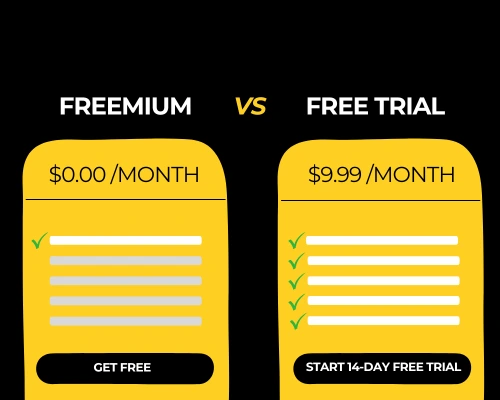
Add a Simple Comparison Page (Inside Plugin and on Website)
Show:
- What free includes
- What pro includes
- Who it’s for
- One real outcome (“Save 2 hours/week”)
Step 5: Improve Retention with Updates, Stability, and Transparency for WordPress Plugin Active Installations Growth
Users stay when they feel safe. The best way to communicate safety is through consistent maintenance.
Update regularly (even small updates)
Even minor releases can reassure users that the plugin is alive:
- Compatibility updates
- Small bug fixes
- UI improvements
- Performance enhancements
Keep Changelogs Readable for WordPress Plugin Active Installations Growth
Your changelog should be easy for non-developers:
- “Fixed: Conflict with X theme.”
- “Improved: Faster scan time.”
- “Added: New integration.”
Also, make sure your plugin aligns with WordPress.org directory expectations and guidelines to avoid issues that could hurt trust or availability.
Step 6: Support and Documentation That Prevent Uninstall Decisions
Many uninstalls happen because the user gets stuck and can’t find help fast enough.
Create Documentation That Matches Real Questions
Your documentation should include:
- Quick start
- Common errors + fixes
- “How to” workflows (most searched tasks)
- Screenshots for each major step
Reduce Support Friction Inside The Plugin for WordPress Plugin Active Installations Growth
Add:
- A “Help” link on every settings page
- A “Contact support” button that pre-fills site info
- A troubleshooting checklist
Use WordPress.org Support Forums Strategically
The plugin directory provides built-in support forums. Active, helpful replies improve confidence and reduce churn.
Step 7: Get More Reviews The Right Way (Without Breaking Trust)
Reviews influence installs. But you must do this carefully.
Ask At The Right Time for WordPress Plugin Active Installations Growth
Ask for a review when:
- The user completes setup successfully
- The plugin has been active for a few days
- A support issue is solved
Don’t Incentivize Reviews
Incentivized reviews have been a known issue in the ecosystem, and they can damage your reputation. Keep review requests polite and optional.
Reply Publicly to Negative Reviews
A calm, helpful reply does two things:
- It may recover the user
- It signals to future users that you’re responsive
Step 8: Drive Qualified Installs With Content That Ranks
Not all traffic is equal. You want users who have the problem your plugin solves and who intend to keep a solution installed.
Content Types That Attract “Sticky” Users
Create:
- WordPress Tutorials (“How to do X in WordPress” using your plugin)
- Comparison posts (your plugin vs. alternatives, honest pros/cons)
- Troubleshooting guides (common errors your plugin solves)
- Use-case landing pages (WooCommerce, multisite, agencies, etc.)
Internal Linking Matters for WordPress Plugin Active Installations Growth
If your brand has a blog:
- Link from tutorials → your plugin page
- Link from docs → setup guide → upgrade page
- Link from comparison post → “Who Pro is for”
This improves SEO and increases conversion from free to paid WordPress users because users arrive pre-educated.
Step 9: Measure What Actually Boosts WordPress Plugin Active Installations Growth
If you’re not measuring churn, you’re guessing.
Track:
- Activation rate (installs → activation)
- Setup completion rate (wizard finished?)
- Time-to-first-success
- Uninstall timing (same day vs. after a week)
- Feature usage (what features drive retention)
- Conversion rate to paid users (free to paid WordPress users)
Freemium benchmarks vary widely across SaaS, but many sources report low single-digit to ~10% ranges depending on market and positioning making retention and activation critical levers.
Final Thoughts for WordPress Plugin Active Installations Growth
If you want more active installations, you need to win two moments:
- The first five minutes after activation
- The first time something goes wrong
Nail onboarding, reduce friction, and make the free version genuinely helpful. Then, create upgrade paths that feel like a logical next step.
That is how you can build installs and free to paid WordPress users without damaging trust. In the event that these foundations are present, growth is predictable, sustainable and much easier to scale with time.